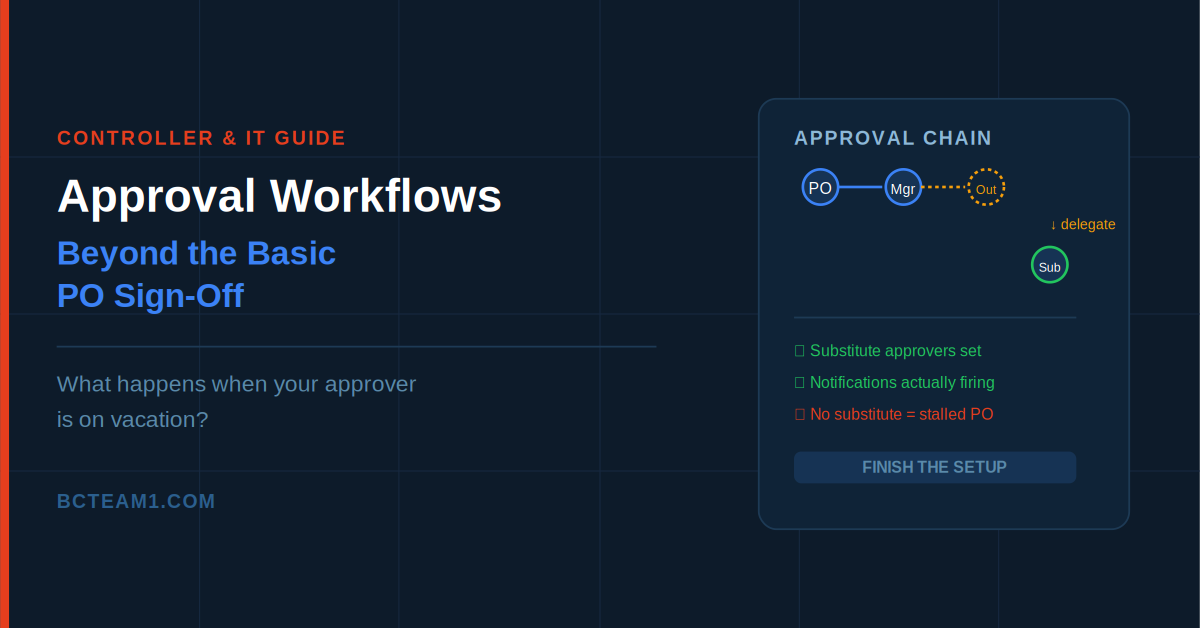
A purchase order sits waiting for approval. The approver is on vacation, hasn't set up an out-of-office delegate, and nobody else has visibility into the queue. Three days pass before someone thinks to check, and by then a vendor discount window has closed and a warehouse manager has been asking why stock hasn't shipped. Nobody did anything wrong, exactly — the workflow just wasn't built to handle a person being unavailable, because it was never really built at all. It was configured once, quickly, during implementation, and never revisited.
This is the state of approval workflows at a lot of companies running Business Central: one basic purchase order sign-off, no substitute approvers, no escalation path, and no visibility into what's actually stuck in the queue. The platform's native workflow engine is capable of considerably more than that — most of it just requires someone to go back and finish the setup.
Workflows Are Not the Same Thing as Permissions
Worth separating clearly before anything else: permissions and workflows solve different problems. Permissions decide what a user is technically allowed to do in the system. Workflows decide whether an action a user is permitted to take should still be routed to someone else for review first. A user can have full purchasing permissions and still be required to route every order above a certain amount through an approval workflow — the two controls work together, not as substitutes for each other.
The Three Setup Stages Most Companies Only Half-Finish
1. Approval User Setup
Every person involved in an approval workflow needs a line in Approval User Setup — their approver, their approval limits by document type, and critically, their substitute. This is the field most teams skip, and it's exactly the gap that causes the vacation scenario above. Without a substitute defined, an approver who's unavailable simply stalls the request; Business Central has no one else to route it to unless the fallback reaches an Approval Administrator, which itself has to be deliberately configured.
The same user should never be set up as both requestor and approver on the same workflow — when that happens, their own requests get approved automatically, which quietly defeats the purpose of having an approval step at all.
2. Notification Setup
Business Central supports two native notification channels — email and internal Role Center notes — and both depend on setup that's easy to overlook. Email requires the Email Setup page properly configured with a sender account; internal notifications rely on the job queue actually running, since approval notifications are dispatched through it. If the job queue isn't set to start automatically, notifications quietly stop firing even though the workflow itself keeps logging requests correctly — which means approvers may have no idea a request is waiting on them at all.
Notification timing is also configurable — instantly as requests arrive, or batched into a daily digest. For time-sensitive approvals like purchase orders tied to vendor discount windows, instant notification is usually worth the slightly higher notification volume.
3. The Workflow Itself: Sequential vs. Parallel
When a workflow requires more than one approver, Business Central supports two distinct routing models. Sequential routing sends the request to the first approver, and only passes it to the second after the first has approved — well suited to tiered dollar-limit approvals, where a manager clears smaller amounts and a director only sees requests above a threshold. Parallel routing sends the request to all approvers simultaneously and only completes once everyone has responded — better suited to genuinely independent sign-off from two different functions on the same record, like finance and operations both needing to approve a capital purchase for different reasons.
Most companies default to whatever the initial implementation set up and never revisit whether sequential or parallel actually matches how the business wants dollar-limit or dual-function approvals to behave.
Delegation: The Feature That Actually Prevents the Vacation Problem
When an approver is unavailable, a request can be explicitly delegated to their substitute rather than simply sitting stalled. Delegation follows a defined order — the named substitute first, then the direct approver's own approver, then the Approval Administrator — which only works correctly if all three of those roles were actually assigned during setup, not left blank.
There's also a built-in safety net worth activating deliberately: the Send Overdue Approval Notifications action checks for every open request that's exceeded its expected timeframe and notifies the approver, their own approver, and the original requestor all at once — specifically so an overdue request can be caught and delegated before it becomes a three-day mystery nobody noticed.
Beyond Purchase Orders
Business Central ships ready-to-use approval workflow templates covering purchase documents, sales documents, payment journals, customer cards, and item cards — not just purchase orders. Most companies configure the purchase order workflow because it's the most obviously financial one, and leave the rest untouched, even when a new customer credit limit or a new vendor record being created without any second set of eyes carries real risk too.
Test Before You Trust It
Before relying on any workflow for real transactions, it's worth testing the full chain end to end — including the delegation path specifically, not just the primary approval route. A workflow that works perfectly when the named approver is available and untested when they're not is a workflow that hasn't actually been tested at all.
Where to Start
If your approval setup has sat untouched since implementation, it's worth checking three things directly: whether every approver has a substitute actually assigned, whether the job queue is confirmed running so notifications actually fire, and whether sequential or parallel routing matches how your business genuinely wants multi-approver requests handled. Most gaps trace back to one of these three, and all three are quick to fix once identified.